Integrating macOS Okta Verify With CrowdStrike EDR via Intune
Introduction
For organizations that use Okta Verify's device assurance capabilities, CrowdStrike Falcon with Zero Trust Assessment for EDR, and Intune to manage configuration of macOS devices, you can integrate Okta Verify with Falcon such that it can read the produced data.zta files. This information can then be used in Okta authentication policies to make ZTA-informed decisions.
Okta's documentation on deploying this functionality is good, however it's currently targeted at organizations using Jamf Pro for macOS device configuration management. In this guide I will detail the steps to do the same via Intune.
Deploying via Intune
Create Configuration Profiles
Start by creating 2 distinct macOS configuration profiles (one targeting the com.okta.mobile preference domain, the other targeting com.okta.mobile.auth-service-extension) in Intune, using the preference file template:
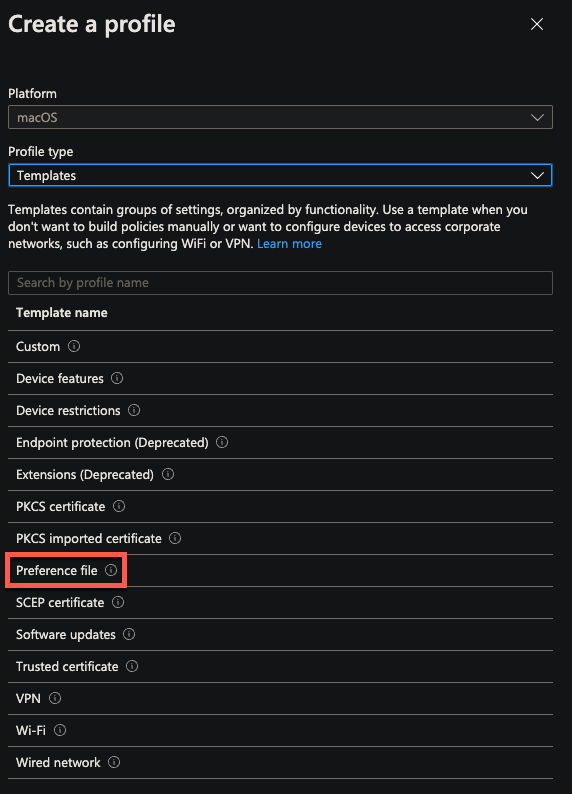
For the property list file, you can save the below as an XML file (.xml) and upload:
<key>OktaVerify.Plugins</key>
<array>
    <string>com.crowdstrike.zta</string>
</array>
<key>com.crowdstrike.zta</key>
<dict>
    <key>description</key>
    <string>File-based EDR integration between Okta Verify and the CrowdStrike Falcon agent</string>
    <key>format</key>
    <string>JWT</string>
    <key>location</key>
    <string>/Library/Application Support/Crowdstrike/ZeroTrustAssessment/data.zta</string>
    <key>name</key>
    <string>com.crowdstrike.zta</string>
    <key>type</key>
    <string>FILE</string>
</dict>
Verify Profile Sync
Following Intune's sync, you should see your profiles in System Settings -> Profiles:
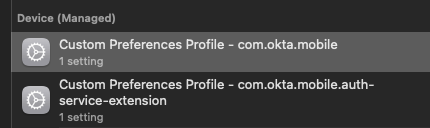
You can double-click either of the above to verify their contents match your original upload.
Okta Configuration
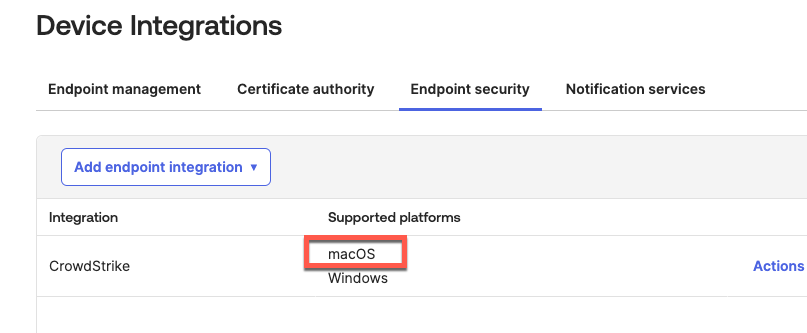
Finally, ensure you have macOS selected as a supported platform in Okta in Device Integration -> Endpoint security: